Google Calendar offers a solid foundation for daily time management that easily upgrades into a comprehensive project management view.
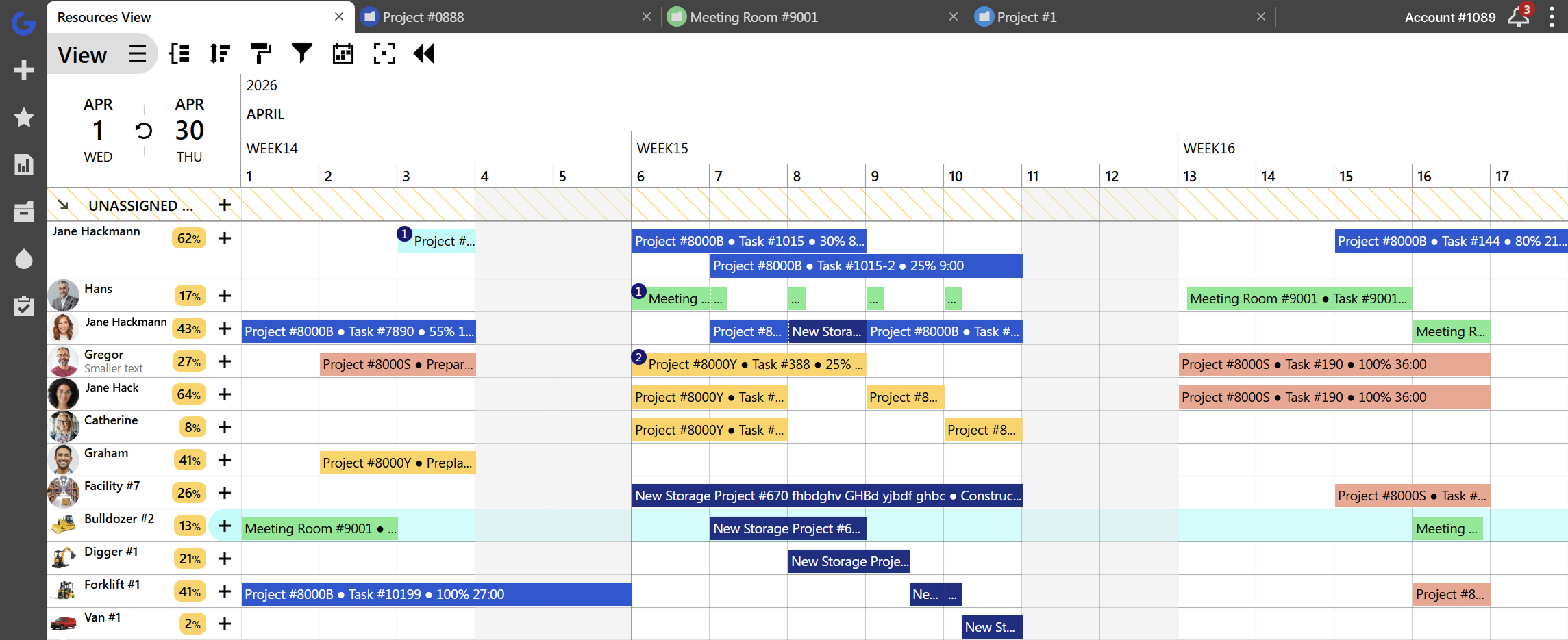
Transforming your standard calendar events into a visual resource planning timeline takes only three straightforward steps. Syncing your schedule with Ganttic instantly generates this unified overview, equipping your team with complete visibility over task progress and resource capacity.
Can I use Google Calendar for project management?
Google Calendar excels at everyday scheduling, providing a simple way to track project deadlines, client appointments, and personal obligations. When managing larger projects or a growing portfolio, relying solely on a basic calendar quickly creates operational bottlenecks. As complexity increases, Google Calendar lacks the necessary tools for tracking dependencies, allocating resources, and monitoring overall progress.
Integrating your schedule with a Gantt chart eliminates these limitations and provides a highly effective, visual project management workflow.
A Gantt Chart Calendar
Google Calendar is not designed to provide a complete overview of complex team workflows or high-volume project portfolios. Relying on it alone often leads to siloed schedules and blind spots in capacity planning. You do not have to abandon your current setup to achieve better visibility. Integrating Google Calendar with Gantt chart software merges everyday personal scheduling with comprehensive project oversight.
This combination creates a unified, visual timeline that actively prevents double bookings. With Ganttic, the integration requires only a few simple steps. Once connected, you gain synchronized team schedules, a clear overview of multiple individual calendars, and a highly effective environment for resource planning. Project managers can track task dependencies in real time, while individual team members manage their daily appointments exactly as they always have.
Gantt Charts + Google Calendar for project management
Gantt charts are the go-to method for many project managers, thanks to features like drag and drop scheduling, task and resource and task utilization, and customizable data fields. These tools provide better insights, promote team efficiency, and make it easier to organize projects at scale.
While dedicated project management software offers these capabilities, transitioning to a new tool can feel daunting. Manually migrating data or training your team might seem like a hassle.
That’s why integrating Google Calendar with a Gantt chart is the perfect middle ground.
By syncing your Google Calendar with an online Gantt chart like Ganttic, you can import key events and schedules without disrupting your team’s workflow. Everyone can continue using Google Calendar as usual, while managers gain access to advanced features like visual task overviews, detailed project timelines, and resource allocation.
Ganttic adapts seamlessly to your established workflows.
In Ganttic you can also import from and sync with Outlook Calendar.
From Google Calendar to a Gantt schedule timeline: Step-by-step guide
In this step-by-step guide, we’ll show you how to integrate Google Calendar with Ganttic and create a dynamic Gantt chart that syncs seamlessly with your existing schedule. By visualizing your calendar events in a Gantt chart format, you’ll automatically transform planning and project management to the next level.
1. Add a Resource to Ganttic
To turn plans made in Google Calendar into Gantt charts, you have to have a resource to schedule tasks for. If the resource already exists, you can skip this step.
Resources can be anything you plan with—people, equipment, or facilities. If you’re new to Ganttic, sign up and start by adding everything relevant to your projects, such as team members, meeting rooms, or tools. This ensures you have everything in place for effective scheduling.
Find out how to create a Resource, Task, and a Project in Ganttic.
2. Set up Google Calendar sync
Now that you have your resource, you can sync it with Google Calendar.
In Ganttic, you can choose between one-way sync and two-way sync. We’ll explain what these mean.
One-Way Sync
One-way sync is a good idea if you don’t want any data coming from Ganttic to Google Calendar. If you are syncing your data with an existing calendar you might want to consider one-way sync.
Two-Way Sync
With Google and Ganttic two-way synchronization, we export the existing data from Google to Ganttic and vice versa. Two-way sync is the one for you if you actually want to do some planning with Google Calendar and create Gantt charts of plans made in Google Calendar. Any changes you make to the plans will be synced to Ganttic for others to see.
If you are using a two-way sync, you can make changes to your team’s plans by reallocating resources in Ganttic. The plans will be updated in Google Calendar as well.
Alongside event times, you can choose to include other details that will sync. For example a task’s notes or data fields created in Ganttic – include details that will help them get their work done. Locations, task status, billable hours and more can all be synced.
3. Schedule events in Google Calendar
Your team members can continue using Google Calendar exactly as they always have. No additional steps or workflow changes are needed.
Every scheduled event automatically syncs to Ganttic, instantly transforming individual calendar appointments into a comprehensive Gantt chart.
This seamless integration provides your organization with:
Benefits of integrating Google Calendar & Ganttic: User case studies
There are many advantages to integrating your Google Calendar with resource management software such as Ganttic.
Reduce scheduling errors
This integration enhances your planning process by improving team communication. It provides a transparent, efficient way to manage all resources within one centralized platform. Managers can easily compare project tasks alongside personal schedules, instantly highlighting any overlaps that require adjustment.
Straightforward and effective
Matt Scheller from Fraser Magic says,
“A normal calendar is not really useful for resource allocation and fully fledged planning tools are too complex.”
But the combination of both gives you the best of both worlds, without also having to deal with new, complicated software. Syncing the two programs allows team members to see all of their assigned tasks alongside their own personal calendars. There’s no need for your field workers to learn another program or switch between different views to find the tasks assigned to them. Those will be in their personal calendars already.
Grows with you
Allison Stroebele from Pure Technologies said that, before using Ganttic, her company was using a combination of Outlook Calendars and Excel spreadsheets at the time, but were quickly outgrowing these scheduling tools.
Integrating Ganttic with your personal calendars ensures you have the necessary capacity to manage any number of resources. As your company expands, the platform scales alongside your operations. Instead of creating bottlenecks, this flexibility actively supports your long-term growth.
Pro Tip: If you’re done with spreadsheets as well, you might want to consider replacing Excel in your workflow.
Scheduling updates are instantaneous. Any event added to Google Calendar appears in Ganttic the moment you initiate the sync. This instantly transforms your existing calendar data into a visual Gantt chart. Your team can execute plans immediately without experiencing technical delays. You also maintain complete control to disconnect the integration at any time, requiring absolutely no manual data migration.
Gantt chart overview + Google Calendar’s accessibility
Syncing Google Calendar with Ganttic allows your team to maintain their daily time blocking habits without introducing extra administrative work. Managers can seamlessly book critical meetings and fill available time slots using their existing scheduling tools.
If your organization relies on Microsoft products, you can read our complete guide on Combining Gantt Charts with Outlook Calendar. For connecting other essential enterprise software, we offer Zapier for quick no-code setups and the Ganttic API for complete custom control. These flexible options allow you to tailor your resource management workflows exactly as needed.